
How to write a Shopify product description (free template)
By Guillaume at Octopia ·
The short answer
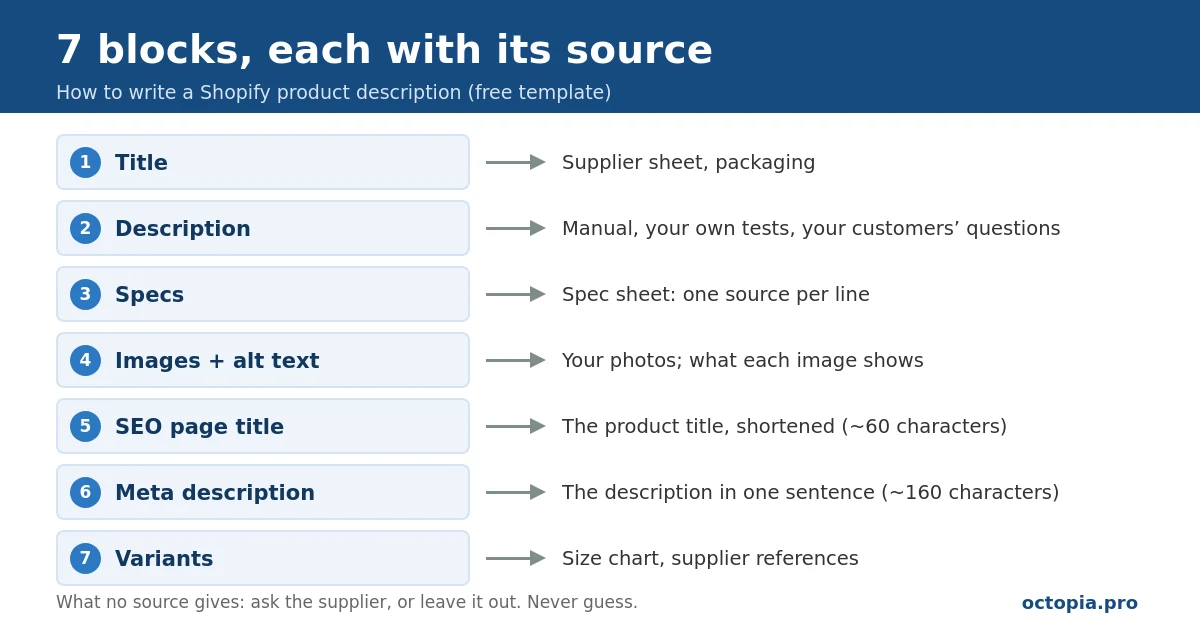
Write a Shopify product description from your sources, not from memory. The written part of a product page comes down to seven blocks:
- a title that names the product and its main feature;
- a description that answers the buyer’s questions;
- specs taken from your sources, one per line;
- images, each with alt text;
- an SEO page title;
- a meta description;
- variants.
When no source gives a detail, ask the supplier or leave it out. Don’t guess.
Jump to: the free template · the 5 steps · the source checklist
Shopify product description template
The product below is made up; only the structure matters. Replace each bracket with information from your sources. If no source gives it, delete the line.
| Block | Template | Made-up example |
|---|---|---|
| Title | [Product type] [Brand or model] – [main feature] | Sample Model LED Desk Lamp – Adjustable Arm, 3 Light Colors |
| First sentence | [Who it’s for] + [what it does for them], tied to a spec | Light your desk your way: three light colors, from warm to cool white, on an arm that bends where you need it. |
| Specs | One per line | Power: 8 W. Power supply: USB-C. |
| In the box | [What the buyer receives] | Lamp, USB-C cable, manual |
| Care | [What the manual says] | Wipe with a dry cloth |
| Page title | [Product] [main feature] – [brand], ~60 characters | LED Desk Lamp with Adjustable Arm – Sample Model |
| Meta description | One sentence, ~160 characters | LED desk lamp with an adjustable arm, 3 light colors and USB-C power. Comes with a cable and a manual. |
| Alt text | [What the image shows] | Black desk lamp, arm folded, on a wooden desk |
Your private source checklist
Keep it next to the template while you write. One line per spec, with its source or what still needs confirming (step 2 below explains how to build it):
| Spec | Exact source | To confirm |
|---|---|---|
| Power: 8 W | Supplier spec sheet, page 1 | — |
| Power supply: USB-C | Manual, page 3 | — |
| 3 light colors | Spec sheet, page 1; checked in use | — |
| LED lifespan | None | Asked the supplier; left off the page until they answer |
What a Shopify product page contains
You create a product in the Shopify admin under Products › Add product (Shopify Help Center). Each field has a job, and each one is filled from a specific source.
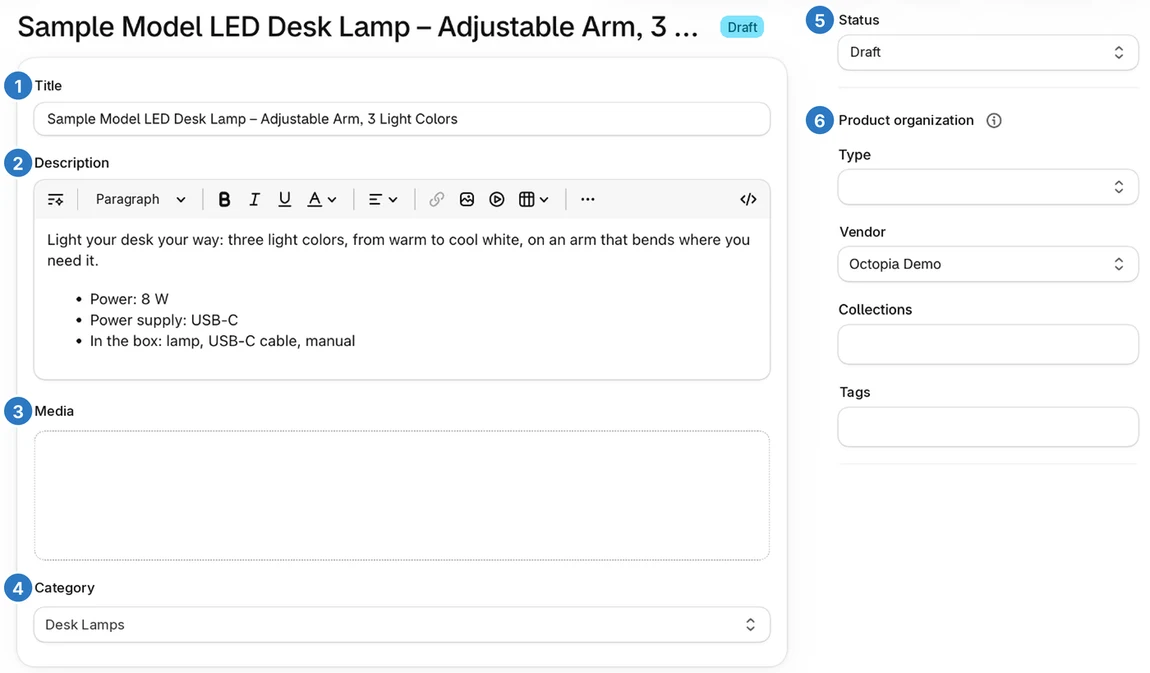
| Field | What it’s for | Shopify’s guidance | Source to use |
|---|---|---|---|
| Title | Names the product on its page and in collections | None | Supplier sheet, packaging |
| Description | Answers what the buyer wants to know before buying | None | Spec sheet, manual, your own tests, your customers’ questions |
| Media | Shows the product from every angle, in use | Not checked | Your photos; the supplier’s if they allow reuse |
| Alt text | Describes each image to someone who can’t see it | 512 characters max, 125 or fewer recommended | What the image shows, nothing more |
| Category | Places the product in Shopify’s standard taxonomy | Unlocks category metafields; sets the tax rate with Shopify Tax | The exact product type |
| Variants | Sizes, colors, materials | Up to 3 options and 2,048 variants per product | Size chart, supplier references |
| Page title (Search engine listing) | The title shown in search results | Up to 70 characters, 60 or fewer advised | The product title, shortened |
| Meta description | The text that may appear under the title in search results | May be cut off past 320 characters, per the product help page; 160 recommended, per the SEO help page | The description, in one sentence |
| URL handle | The page’s web address | None | The title, in plain words |
| Tags, type, vendor, collections | Organize and filter your catalog | Tags: 255 characters each, 250 per product (no tag-count limit on Shopify Plus) | How you organize your catalog |
How to write one in 5 steps
1. Gather your sources
Before you write a word, collect everything that describes the product: the supplier’s listing, the spec sheet, the manual, the packaging, your own photos and measurements, and the questions customers have already asked. Note where each one comes from and when you got it. That way, you can trace every spec back to its source.
2. List the specs, then the gaps
Make two lists. The first: each spec, its value and its source (“Weight: 2.6 lb, spec sheet, page 2”). The second: what a buyer will want to know that no source tells you.
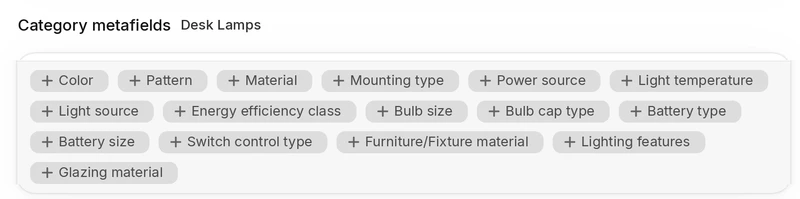
Shopify can help with the second list. Once you pick a category, the admin suggests category metafields for it. For “Desk Lamps”, in November 2026, these included color, material, light temperature, power source, light source and energy efficiency class. Each one is a question a buyer may ask. Fill in the ones your sources answer, and leave the rest empty.
Baymard Institute names three kinds of information shoppers look for: materials and ingredients, dimensions, and compatibility. For beauty products, 50% of the users in its desktop study needed ingredient information (Baymard, March 9, 2021).
There are two ways to close a gap: ask the supplier, or leave the detail out. Never guess it. If buyers need that detail to choose, get it confirmed before you publish.
3. Write for the buyer
- The title: product type, brand or model, main feature. Not a string of keywords.
- The first sentence: who the product is for and what it does for them, tied to a spec from your list.
- Then answer the questions buyers are most likely to ask, in the order they ask them: is it for me, how big is it, what is it made of, what does it work with, how do I care for it, what’s in the box.
- The specs as a list, one per line, in the description or in product metafields if your theme shows them. Each one appears in your step 2 list.
Use the supplier’s facts, not their wording. A description that matches every other reseller’s gives the buyer nothing new. Your photos, your measurements and your customers’ questions do.
4. Fill in the search engine listing
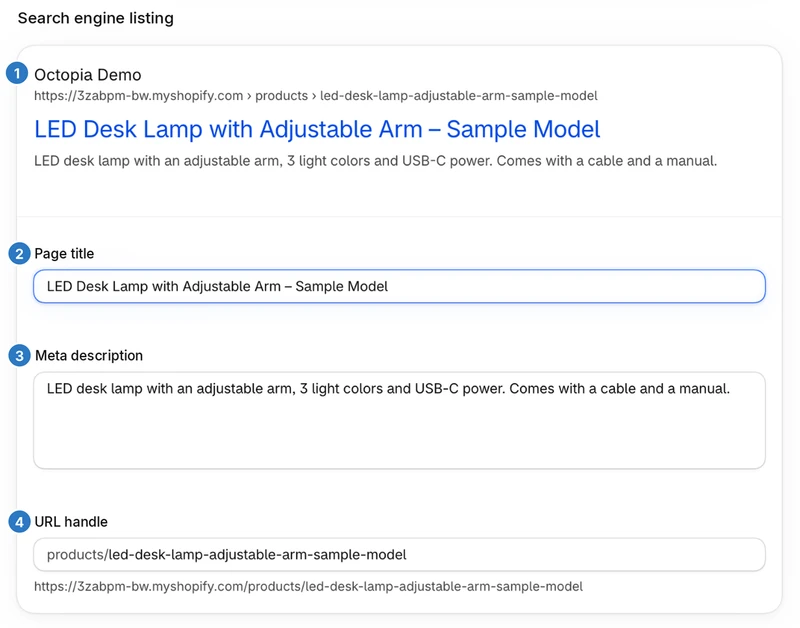
It’s at the bottom of the product page, in the Search engine listing section. Its preview shows how the product may appear in search results: page title, URL and part of the description.
- Page title: the product and its main feature, in about 60 characters.
- Meta description: one sentence on what the product is and who it’s for, around 160 characters.
- URL handle: short, with the words of the title.
- Alt text for each image: what it shows, in 125 characters or fewer.
5. Check before you publish
- Every spec can be traced to a source.
- No number without a source.
- Every gap is closed: confirmed by the supplier, or removed.
- The variants say the same thing as the description.
- The page title and meta description are filled in.
- Every image has alt text.
- The page reads well on a phone.
Common mistakes
- Pasting the supplier’s description as-is (step 3).
- Guessing a spec that no source gives, “because they’re always like that.”
- A title stuffed with keywords instead of naming the product.
- Images with no alt text.
- A page title and meta description left empty, or the same on every product.
- Letting an AI tool fill the gaps. A tool that writes from a prompt can produce a plausible value that appears in none of your sources. Check every spec against your source checklist.
Not on Shopify? WooCommerce and PrestaShop
The method is the same; only the fields change. In WooCommerce, where the SEO title and meta description go depends on your setup (usually an SEO plugin). In PrestaShop 8, they’re in the product’s SEO tab (PrestaShop 8 documentation).
Doing it with Octopia
Octopia: AI Product Pages, a Shopify app made by MG Innovations, follows this method. It reads your sources: your current Shopify product, plus an AliExpress or Amazon listing if you paste its link. Its 25 AI specialists then draft the description and the specs, propose the page title and meta description, place your images in the description with their alt text, and translate the page into the languages your store publishes. Each spec is meant to come from information found in your sources, and what’s missing is flagged on the page for you to fill in. Check the specs against your sources before you approve: nothing goes live until you do.
What it can’t do: find details that none of your sources contain, change your product title, set your prices or stock, or replace your own review. On WooCommerce and PrestaShop, it gives you the page ready to paste, in your store’s language, without translations or direct publishing. To see what that looks like, here are three AliExpress listings, before and after.
Frequently asked questions
How long should a Shopify product description be?
The Shopify help pages we read don’t set a length. The right length is whatever answers a buyer’s questions about that kind of product: materials, dimensions, compatibility, care, what’s in the box. A line with no source behind it helps no one.
Is there a character limit for a Shopify product description?
The help pages we read don’t set one for the description itself. The limits we found are on the other fields: page title (up to 70 characters, 60 or fewer advised), meta description (may be cut off past 320 characters, 160 recommended), alt text (512 characters, 125 or fewer recommended) and tags (255 characters each; 250 per product, no count limit on Shopify Plus).
Can I use the supplier’s or manufacturer’s description?
Use their facts and rewrite the text. To reuse their text or photos as they are, make sure they allow it. And a description that matches every other reseller’s gives the buyer nothing new.
Do I need a separate product page for each language?
No. Keep one Shopify product and add translations to it, including the page title, meta description and image alt text; each published language gets its own URLs. Shopify’s own app for this is Translate & Adapt. Translate from the final version, and check numbers and units in each language.
Can AI write my Shopify product descriptions?
Yes, if it works from your sources and you review what it writes. No tool can promise it will never write a spec that isn’t in your sources: that’s what the source checklist is for.
Try it on one of your products
From your sources, Octopia drafts the description, specs and SEO fields, places your images in the description and prepares translations. You keep your product title. What's missing is flagged for you to fill in, and nothing goes live without your go-ahead.
No credit card. On Shopify, the app connects to your store; on WooCommerce and PrestaShop, a product page address is enough.